
1. Introduction
The Hotspot-Face is an advanced touchscreen monitor specifically designed for DMR hotspot systems operating PI-Star. It provides real-time activity monitoring without needing a PC or mobile device.
Callsigns, talk groups, and connection status appear instantly on a clean, dedicated display for your shack. The latest version features a polished multi-zone display layout, a country flag box, a comprehensive SD card callsign database, and automatic brightness adjustment — all running on a custom low-level firmware for maximum reliability and performance.
2. Features
Display
- 2.8" TFT touchscreen (320×240 resolution)
- Polished multi-zone colour layout: header, status, callsign, talk group, name, location, date and connection bars
- Country flag box in the bottom-right corner — displays the operator's country flag during transmissions
- Colour-coded status indicators for instant at-a-glance reading
- Real-time DMR activity display with operator names and locations
- Scrolling text for long location and city names
- Clean display format — numeric talk groups, simplified status text
- Date and connection mode indicator at the bottom
Database
- SD card-based DMR database with 450,000+ callsigns
- Millisecond callsign lookups
- Operator first name, surname, city, state, and country
- Smart location formatting — city, state and country shown where available
Network
- 2.4 GHz WiFi support
- Multiple WiFi network profiles (up to 10)
- Auto-discovery of PI-Star devices via mDNS
- Mobile-optimised web configuration interface (captive portal)
- Priority connection — remembers last successful network
Configuration
- Long-press header for options menu
- Captive setup portal (mobile or tablet)
- Network scanning and selection
- Adjustable display brightness with multiple levels
- Automatic brightness adjustment based on local sunrise/sunset times
- Factory reset functionality
3. Initial Setup
When powered on for the first time, the device enters WiFi Setup Mode and displays a splash screen showing HOTSPOT-FACE before presenting the setup portal.
Step-by-Step Instructions:
- Power the device via USB-C (5V).
-
Connect to WiFi network:
Network:Hotspot-Face Setup
Password:M3URE1512 -
Press "Sign in" if prompted
Most mobile devices will show a notification to sign in to the WiFi network. Tap this notification to open the configuration page automatically. -
Configure your settings:
- Enter your home WiFi SSID and password (or scan for networks)
- Optionally enter PI-Star IP address
- Leave PI-Star IP blank to enable automatic discovery
- Default PI-Star credentials:
pi-star/raspberry
- Click "Save & Connect" to save and reboot.
- The device will connect to your WiFi and find your PI-Star automatically.
4. SD Card Database
What's on the SD Card
The included SD card contains a DMR ID database file named dmrids.csv with 450,000+
callsigns, names, and locations. The device displays the
operator's name, city, state and country during DMR transmissions.
When to Update the Database
Update your database when:
- You notice callsigns without names or locations
- You want the latest operator information
- New users in your area have joined DMR networks
- Every 3–6 months to keep information current
How to Update the Database
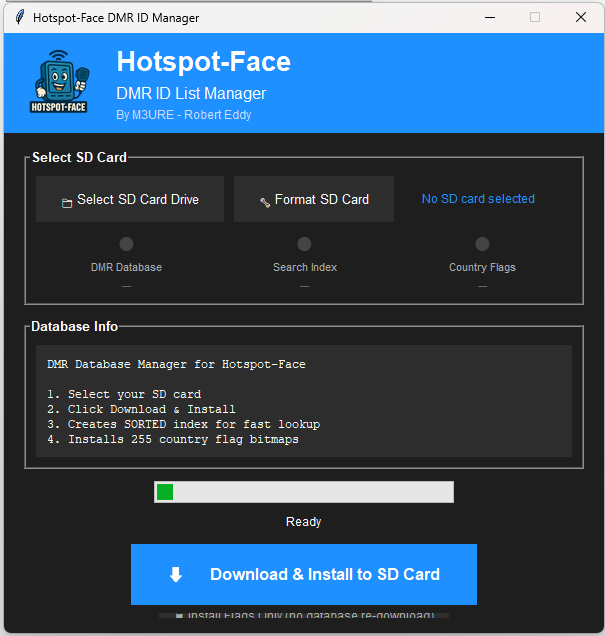
Database updates are handled using the Hotspot-Face DMR ID Manager software, included with your device. Simply select your SD card drive, then click Download & Install to SD Card. The software automatically downloads the latest database, creates a sorted index for fast lookup, and installs 255 country flag bitmaps — no manual steps required.
5. Display Layout
The display is divided into distinct colour-coded zones arranged top to bottom, with a flag box in the bottom-right corner:
DMR ID / scrolls
e.g. M3URE
e.g. 91
FLAG
BOX
| Zone | Colour | Description |
|---|---|---|
| Header | Blue | Shows the device name. Long-press (3 seconds) to access the options menu. |
| DMR ID | Yellow | Shows the DMR ID of the transmitting station. Scrolls if the ID is long. |
| Callsign | Purple | Displays the callsign of the transmitting station. |
| Talk Group | Green | Shows the active talk group number (e.g., "91"). |
| Name | Black | Upper half of the large box. Displays the operator's first name and surname from the DMR database. |
| Location | Black | Lower half of the large box. Shows city, state and country. Scrolls automatically if the text is too wide to fit. |
| Date bar | Light grey | Displays today's date, updated automatically via NTP. Spans the width of the screen minus the flag box. |
| PI-Star IP bar | Dark grey | Shows the PI-Star IP address. Spans the width of the screen minus the flag box. |
| Flag box | Black with border | Bottom-right corner of the screen. Displays the country flag of the transmitting operator during active transmissions. |
Country Flag Box
The flag box sits in the bottom-right corner of the screen, alongside the date and PI-Star IP bars. When a station transmits, the flag for the operator's registered country is drawn inside the box. Over 100 countries are supported.
6. Normal Operation
Once configured, the Hotspot-Face operates entirely automatically:
- Displays a splash screen on boot
- Automatically connects to your saved WiFi network
- Uses mDNS to discover PI-Star if auto-discovery is enabled
- Fetches PI-Star activity data every 500 ms for real-time updates
- Displays callsign and talk group when activity is detected
- Looks up operator name and location from the SD card database instantly
- Shows city, state and country in the location bar — scrolls if too wide to fit
- Displays the operator's country flag in the flag box (bottom-right corner) during transmissions
- Adjusts display brightness automatically based on local sunrise and sunset times
7. Settings & Options Menu
Accessing the Options Menu
Long-press the blue header bar for 3 seconds. The header will flash with a countdown, then turn green. Release to open the options menu.
Options Available:
| Option | Description |
|---|---|
| AP Setup Mode | Opens the WiFi setup portal to add more networks or change settings. |
| Brightness | Adjust display brightness level (multiple levels). Includes automatic adjustment based on your location's sunrise and sunset times. |
| Factory Reset | Erases all settings and returns device to first-boot state. |
| Cancel | Returns to normal operation without changes. |
Web Configuration Settings:
| Setting | Description |
|---|---|
| Display Name | Custom text shown in the header bar (e.g., "M3URE Monitor") |
| WiFi SSID | Your home WiFi network name (supports network scanning) |
| WiFi Password | Password for your WiFi network |
| PI-Star IP | IP address of your PI-Star (optional if auto-discovery enabled) |
| PI-Star Username | Default: pi-star |
| PI-Star Password | Default: raspberry |
| Auto-Discovery | Enable mDNS automatic PI-Star detection |
8. Advanced Features
Country Flag Box
During an active DMR transmission, the country flag of the transmitting operator is displayed in the dedicated flag box in the bottom-right corner of the screen. Over 100 countries are supported, covering the vast majority of DMR operators worldwide.
Smart Location Display
The location bar shows as much detail as available from the database. Where city, state and country are all present they are displayed together (e.g., "Leeds, Yorkshire, U.K."). Where only some fields are available the device formats them gracefully. Long location strings scroll smoothly with a 2-second pause at the start so you can read the beginning before it moves.
Automatic Brightness
The device can adjust display brightness automatically based on whether it is day or night at your location, reducing glare in a darkened shack at night. Sunrise and sunset times are calculated from your configured location coordinates. Manual override is always available from the options menu.
SD Card DMR Database
A comprehensive DMR database with 450,000+ callsigns is stored on the SD card for easy updates. Callsign lookups are fast enough for real-time display without any noticeable delay.
mDNS Auto-Discovery
The device can automatically find your PI-Star on the network using mDNS. It searches for:
pi-star, pistar, pi-star.local, pistar.local.
Multiple WiFi Profiles
The device stores up to 10 WiFi networks. You can add networks by entering AP Setup Mode and saving additional credentials without losing existing ones. You can also delete WiFi profiles you no longer need through the setup portal. The device remembers the last successfully connected network and tries that first on boot.
9. Factory Reset
How to Perform Factory Reset:
- Long-press the blue header bar for 3 seconds to open the options menu
- Tap the "Factory Reset" button
- The screen will turn red and display "RESETTING"
- Device will reboot into initial setup mode
- Reconnect using the setup instructions in Section 3
10. Troubleshooting
| Issue | Possible Cause | Solution |
|---|---|---|
| WiFi Off | Cannot connect to WiFi |
• Check WiFi password is correct • Ensure router is powered on • Move device closer to router • Check 2.4 GHz WiFi is enabled (5 GHz not supported) |
| No Pi-Star | Cannot find PI-Star |
• Enable auto-discovery in settings • Manually enter PI-Star IP address • Verify PI-Star is powered on and connected • Check both devices are on the same network |
| Auth Error | Wrong PI-Star credentials |
• Default username: pi-star• Default password: raspberry• If changed, enter correct credentials in setup |
| Error | HTTP connection failed |
• Check PI-Star is running • Verify IP address is correct • Ensure PI-Star web interface is accessible |
| Syncing... | Time not yet synchronised |
• Wait 10–30 seconds for NTP sync • Check internet connection is active • Date will appear once NTP sync completes |
| No name/location | SD card issue or callsign not in database |
• Ensure SD card is properly inserted • Check SD card contains dmrids.csv file• Verify filename is exactly dmrids.csv (lowercase)• Verify columns are in alphabetical order • Verify rows are sorted alphabetically by CALLSIGN • Some new callsigns may not be in database yet |
| HubNet TG23526 shows gateway details | HubNet uses a dedicated DMR ID for talkgroup traffic | This is expected behaviour. HubNet (TG23526) routes traffic via a gateway/repeater DMR ID rather than individual user IDs, so the database lookup returns the gateway's details instead of the caller's information. No fix is required. |
| No flag displayed | Country not in flag set or database entry missing |
• Check the operator's country is correctly listed in the database • Very newly registered operators may have incomplete records • The callsign zone will still display correctly without a flag |
Soft Reset Button
There is a soft reset button on the back of the device. If the device becomes unresponsive, use a pen to gently press the centre of the button — press carefully to avoid the button getting stuck. You should feel it click on press and release. This will restart the device without affecting any saved settings.
Additional Tips:
- Perform a factory reset if settings become corrupted
- Ensure USB-C power supply provides stable 5V
- Reformat SD card if database lookups fail after verifying the file
11. Technical Information
Hardware
- Display: 2.8" TFT touchscreen (320×240 resolution)
- Touch: Capacitive touchscreen controller
- Storage: SD card (for DMR database)
- Power: 5V USB-C (minimum 500 mA recommended)
- WiFi: 2.4 GHz 802.11 b/g/n (5 GHz not supported)
Software
- PI-Star: Version 3.4 or newer
- Database: DMR ID database in CSV format
Network Specifications
- Protocols: HTTP, mDNS, DNS, NTP
- AP Mode: 192.168.4.1 (captive portal)
- Update Rate: 500 ms (2 updates per second)
- Discovery: mDNS hostnames (pi-star.local, pistar.local)
Database Specifications
- Callsigns: 450,000+ entries
- Lookup Speed: Millisecond response times
- Data Fields: Callsign, first name, surname, city, state, country
- Storage: SD card-based for straightforward field updates
Memory & Storage
- WiFi Profiles: Stores up to 10 networks
- Retention: All settings persist across power cycles
12. Safety & Disclaimers
Operating Environment
- Indoor use only — Not weatherproof
- Dry locations only — Do not expose to moisture or liquids
- Temperature range: 0°C to 40°C operating temperature
- Ventilation: Ensure adequate airflow around device
Electrical Safety
- Use only 5V USB-C power supplies
- Do not modify internal circuitry
- Disconnect power before cleaning
Disclaimers
- User assumes all risk of operation
- Not responsible for damage to PI-Star or connected equipment
- Follow your local amateur radio regulations
Responsible Use
- Comply with all amateur radio licensing requirements
13. Support & Contact
Developer: Robert Eddy (M3URE)
Callsign: M3URE
QRZ.com: www.qrz.com/db/M3URE
Manual Version: 3.0 — Updated May 2026
Getting Help
When contacting for support, please provide:
- Description of the issue
- PI-Star version
- Network configuration (WiFi vs Hotspot mode)
- Any error messages displayed